What you need
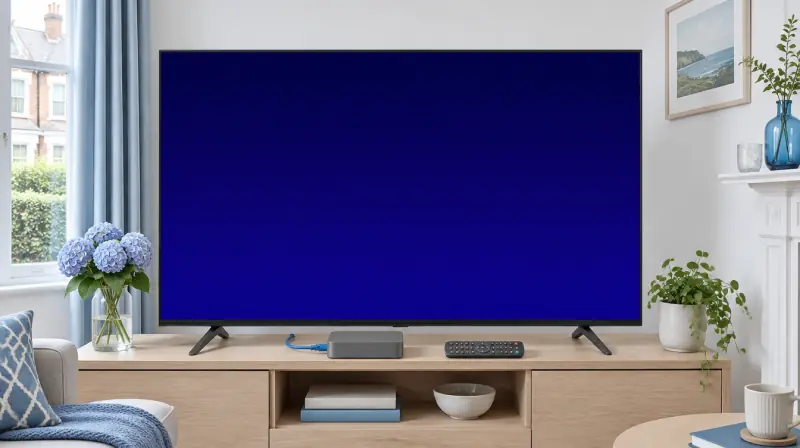
- A MAG box connected to your TV and router
- The MAC address from the sticker underneath the box
- The portal URL we send you
Step 1: send us your MAC address
Every MAG box has a MAC address printed on the sticker underneath. It starts with 00:1A:79. Send a photo of the sticker to us on WhatsApp or Telegram and we register the box to your subscription. We then send you a portal URL.
Step 2: add the portal
Turn on the box. When the menu appears, open Settings (press SETUP on the remote if needed).
Go to System settings → Servers → Portals.
Set Portal 1 name to anything you like, for example “TV”.
Select Portal 1 URL, type the portal URL exactly as we sent it and press OK.
Press EXIT until the box asks to save, select Yes, then choose Restart portal.
Step 3: watch
After the restart, the portal loads with TV, Video Club (films and series) and the TV guide. Use ▲ ▼ to move through channels and OK to watch. Press INFO or EPG for what is on next.
If the portal will not load
- Check the MAC address you sent matches the sticker exactly.
- Use a wired Ethernet connection: MAG boxes work best plugged into the router.
- Go to System settings → Network and check the box has an internet connection.
- Reboot from Settings → Reboot device, or unplug the power for ten seconds.
- Still stuck? See IPTV not working: fixes or message us.
Questions
Which MAG boxes work?
Common models such as the MAG 322, 324, 351, 424, 524 and 540 work. Older models like the MAG 250 work too, but may struggle with HD channels.
Can I move my subscription to a different MAG box?
Yes. Send us the MAC address of the new box and we move the subscription over.